
Autodesk and 3ds Max are trademarks or registered trademarks of Autodesk, Inc. and/or its subsidiaries and affiliates in the USA and other countries. Chaos, V-Ray and Corona are trademarks or registered trademarks of Chaos Software EOOD and/or its affiliates in Bulgaria and other countries. Google and Gemini are trademarks of Google LLC. Plugin X is an independently developed product and is not affiliated with, endorsed by, or sponsored by Autodesk, Chaos Software EOOD, or Google LLC.
Plugin X Documentation
Installation
Plugin X sends a render channel from the V-Ray Frame Buffer to Google Gemini, and brings a photoreal, AI-stylized version of it back into 3ds Max — without leaving the VFB, at a resolution you choose.
This guide covers requirements, installation, first-time setup, updating, and troubleshooting.
1. System Requirements
| Requirement | Details |
|---|---|
| 3ds Max | 2022, 2024, 2025, 2026, or 2027 |
| V-Ray | 6 or 7 (tested on 6.0, 7.20, and 7.40) |
| Google Gemini API key | Your own key, with billing enabled on the linked Google Cloud project |
| Internet connection | Required for every generation |
Plugin X is pure MaxScript + .NET — it does not install Python, does not touch your system PATH, and does not require any Autodesk or Chaos SDK. It only uses the same scripting layer any MaxScript tool uses.
Note on other versions: Plugin X has been built and tested specifically on the combinations above. It's very likely to work on nearby versions too, but we can't promise that yet — if you're on a different version, reach out (support@monokolor.pl) before purchasing and we'll help you double-check, or you might just become one of our testers for that setup..
2. Before You Start: Get a Gemini API Key
Plugin X is "bring your own key" — you use your own Google account, and every generation is billed directly to you. We never see your key or your bill.
- Go to aistudio.google.com/apikey.
- Create an API key.
- Make sure billing is enabled on the Google Cloud project the key belongs to — image generation requires a paid tier, a key without billing will fail.
Keep the key handy; you'll paste it into Plugin X in step 4 below.
3. Installing Plugin X
You should have received a folder (or a .zip) containing:
install.ms
pluginx_v2.mse
vfb_load.py
Keep all three files together in the same folder — the installer copies them as a set.
Steps:
- Unzip the folder somewhere convenient (Desktop, Downloads — location doesn't matter, you can delete it after installing).
- Open 3ds Max.
- Go to Scripting → Run Script...
- Select install.ms from the folder.
- A confirmation dialog appears once installation finishes. Plugin X has been copied to your Max user scripts folder and registered as a toolbar action — you won't need to run the installer again, even after restarting Max.
Add the toolbar button
The installer registers Plugin X, but you still need to place a button for it:
- Customize → Customize User Interface
- Open the Toolbars tab.
- In the Category dropdown, select "Monokolor".
- Drag "Plugin X" onto any toolbar.
The button stays there permanently — it survives restarts, and you won't need to redo this after an update (as long as you don't reinstall from scratch).
First launch
Click the new button. Plugin X opens as a floating panel:
- Paste your license key into the License field at the top and click Activate. You'll find your key in the order confirmation email from your purchase, or in the Customer Portal linked there.
- Open the API Key section, paste your Gemini key, click Save Key. It's remembered from now on.
- Render your scene in V-Ray, then click Refresh List under Source — you should see a list of render channels.
- You're ready to generate. See the Usage Guide for the full workflow.
4. Updating Plugin X
When a new build is released, you'll receive an updated pluginx_v2.mse (and occasionally vfb_load.py, if the VFB integration changed).
To update: simply replace the files in your installed Plugin X folder:
%LOCALAPPDATA%\Autodesk\3dsMax\<version> - 64bit\ENU\scripts\Monokolor_PluginX\
Tip: paste that path directly into the File Explorer address bar and press Enter — Windows will take you straight there (replace <version> with 2025 or 2026). No need to hunt through hidden folders manually.
Your saved API key, output folders, and saved prompts live in a separate file (pluginx_v2.ini) in the parent scripts folder and are not affected by an update — they carry over automatically. You do not need to re-run install.ms or re-add the toolbar button for a routine file update.
5. Uninstalling
To remove Plugin X completely, delete these three items (per 3ds Max version), then restart Max:
- Folder:
%LOCALAPPDATA%\Autodesk\3dsMax\<version> - 64bit\ENU\scripts\Monokolor_PluginX\ - File:
%LOCALAPPDATA%\Autodesk\3dsMax\<version> - 64bit\ENU\usermacros\Monokolor-PluginX.mcr - File:
%LOCALAPPDATA%\Autodesk\3dsMax\<version> - 64bit\ENU\scripts\pluginx_v2.ini(this holds your saved API key, license activation, output folders, and prompts — back it up first if you plan to reinstall later)
6. Troubleshooting
"Channel not found" when generating
You need a render in the V-Ray Frame Buffer first. Render the scene, then click Refresh List in the Source section before generating.
"License invalid" or Generate AI is greyed out / blocked
Your license key needs to be activated on this machine first — go to the License section, paste your key, and click Activate. If it was already activated and still shows invalid, it may have been deactivated from another device or your license may need attention — email us and we'll sort it out.
"Offline — using last known valid license"
This is not an error — Plugin X couldn't reach the license server at that moment (no internet, or a temporary outage), so it's running on the last confirmed valid status instead of blocking you. It re-checks automatically the next time it can connect.
API error, or nothing happens after clicking Generate AI
Open the MAXScript Listener (press F11) — Plugin X prints the raw error there. The most common causes:
- Missing or invalid API key
- Billing not enabled on the Google Cloud project behind the key
- No internet connection at the moment of generation
The result looks unexpected, or the sky/lighting is wrong
This is usually a matter of the Background toggle and which channel you send — see the Usage Guide for how that works. Gemini's output is not fully deterministic; the same input can produce slightly different results between runs.
Toolbar button is missing after restart
This normally shouldn't happen — if it does, re-run install.ms once (it's safe to run again) and re-add the button from Customize UI.
Still stuck?
Email support@monokolor.pl or DM @monokolorstudio. Please include: your 3ds Max version, your V-Ray version, what you did, and — if there's an error — the exact message from the MAXScript Listener (F11).
Gemini Setup
Plugin X is "bring your own key" — before you can generate anything, you need your own Google Gemini API key, on the paid tier. This guide walks through getting one, step by step.
1. Open AI Studio
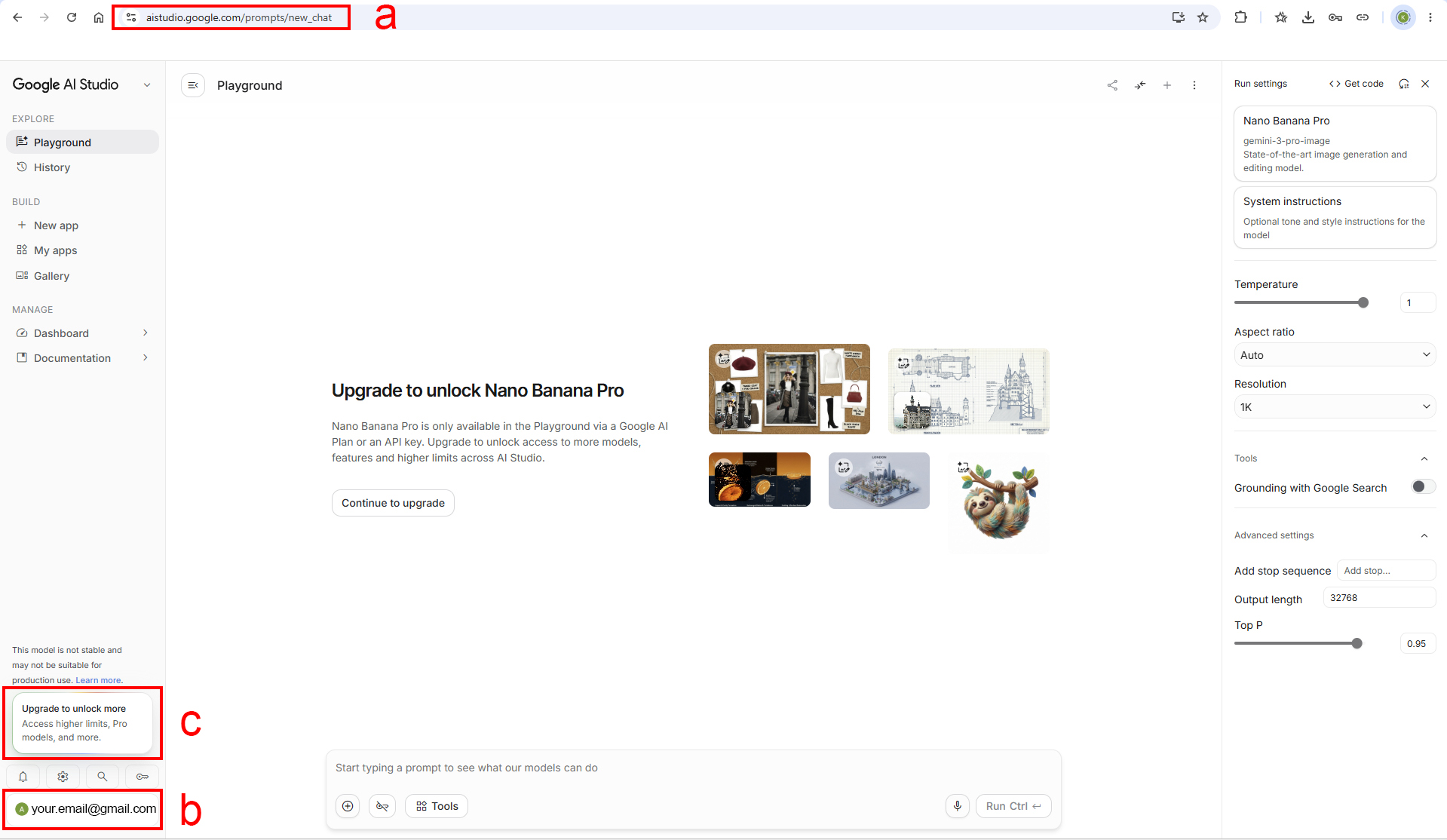
- (a) Go to aistudio.google.com.
- (b) Make sure you're logged in with your Google account — check the account shown in the bottom-left corner.
- (c) Ignore the "Upgrade to unlock Nano Banana Pro" banner in the middle of the screen. That's a separate Google AI subscription plan for using AI Studio itself, and likely access to other Google AI services/plans — it has nothing to do with the API-based generation Plugin X uses.
2. Get Your API Key
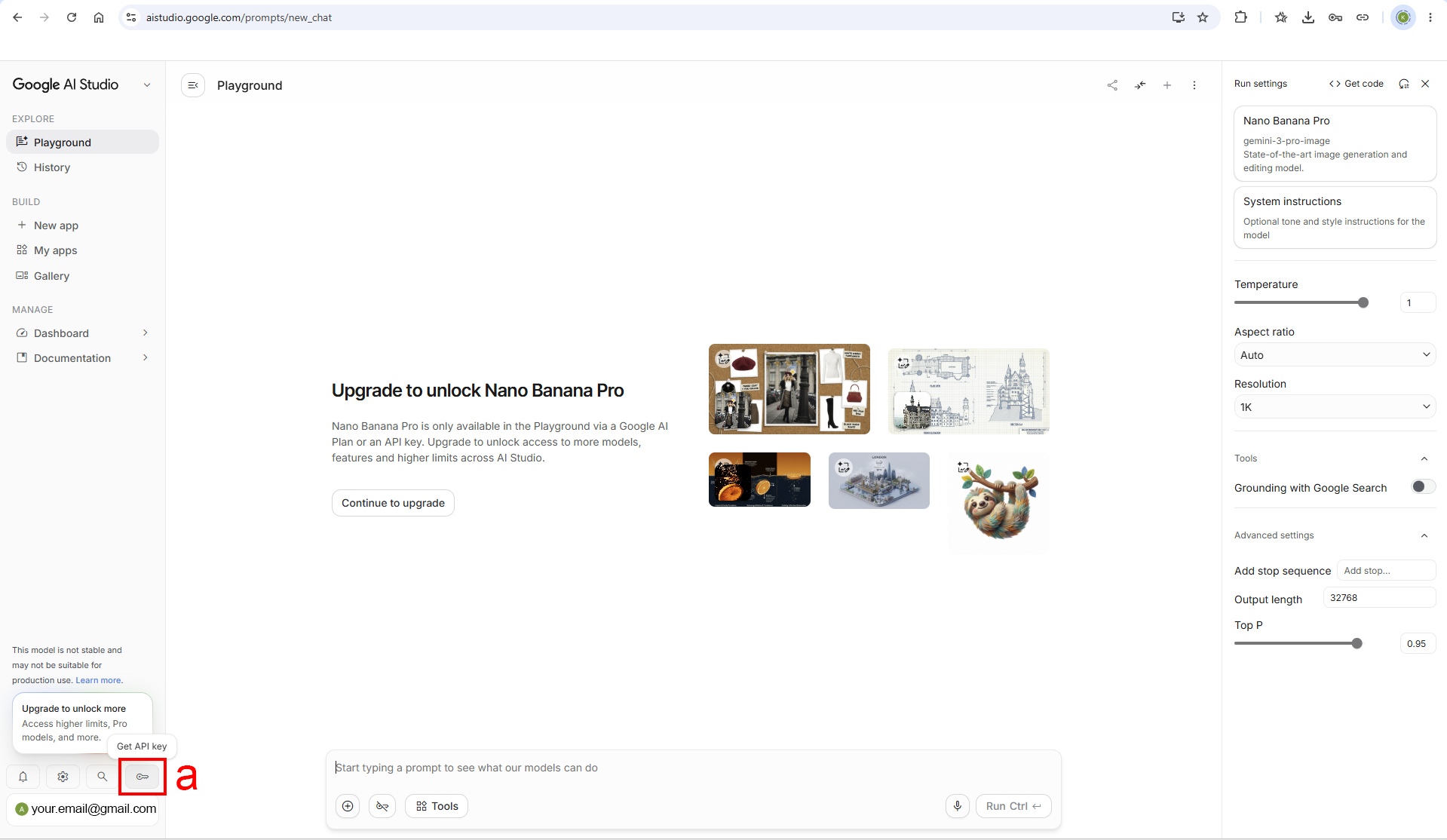
- (a) Click the key icon (Get API key). This is the most important click on this screen — it takes you to the main panel where you manage keys and billing.
3. The Project & Billing Panel
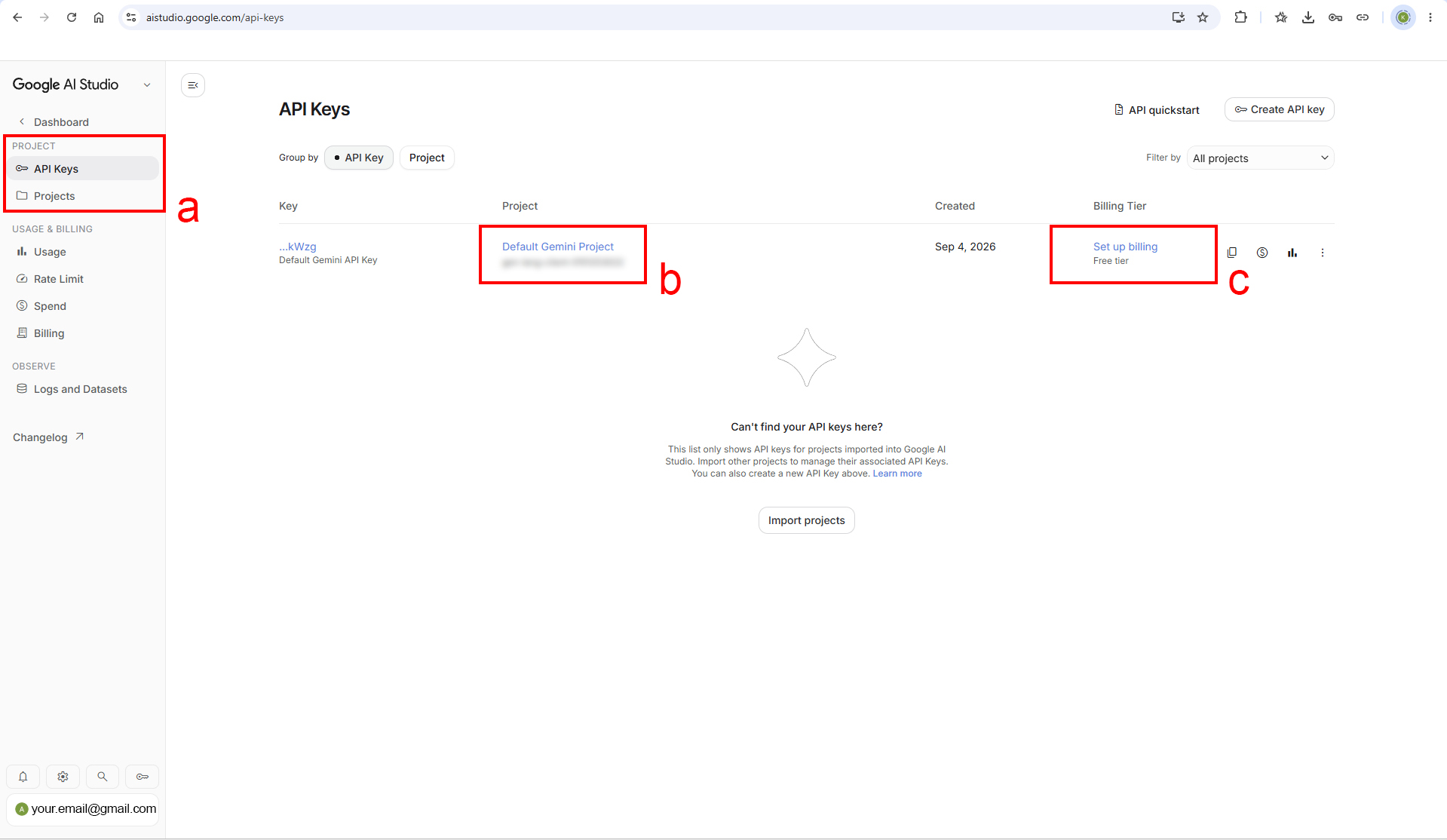
This is your control center — you'll come back here any time you want to edit or rotate keys, add projects for other services, or manage billing.
- (a) The PROJECT section (you land here by default) — this is where you create projects and keys.
- (b) You should see a "Default Gemini Project" listed. If it's not there, create a new one via (a).
- (c) Click "Set up billing tier" — this is where you enter your billing details and payment method.
Why the paid tier matters: the free tier lets Google use the images you send for training their own models — that's not a privacy level Plugin X's EULA allows, since your renders may belong to a client project you don't have the right to share for that purpose. The paid tier's data-handling terms don't include this, which is why Plugin X requires it. As a bonus, the paid tier is also what unlocks 4K output resolution.
4. Set Up Your Billing Account
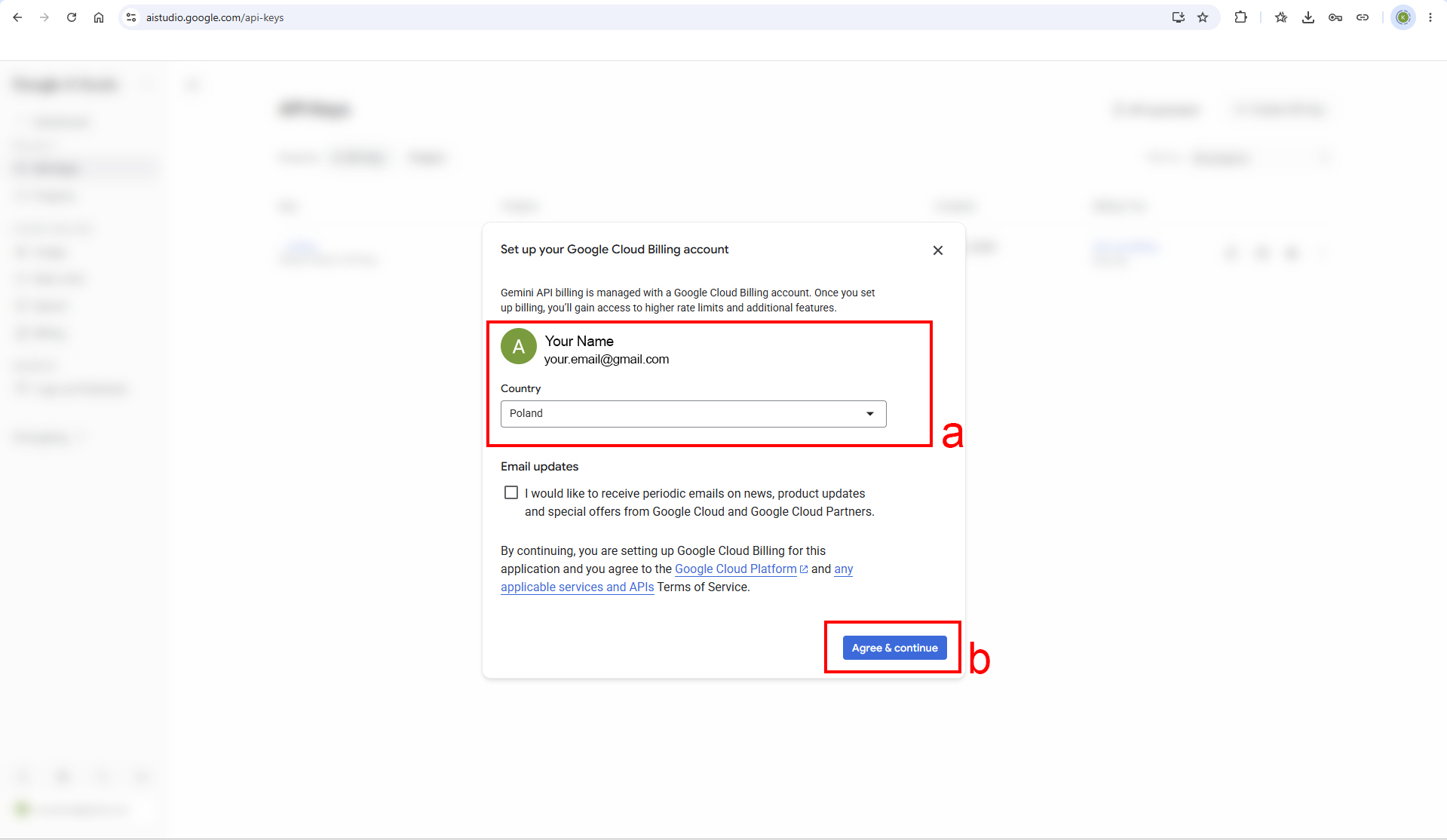
- (a) Below your login details, choose your country of residence.
- (b) Click Agree & Continue.
5. Add Your Billing Account Details
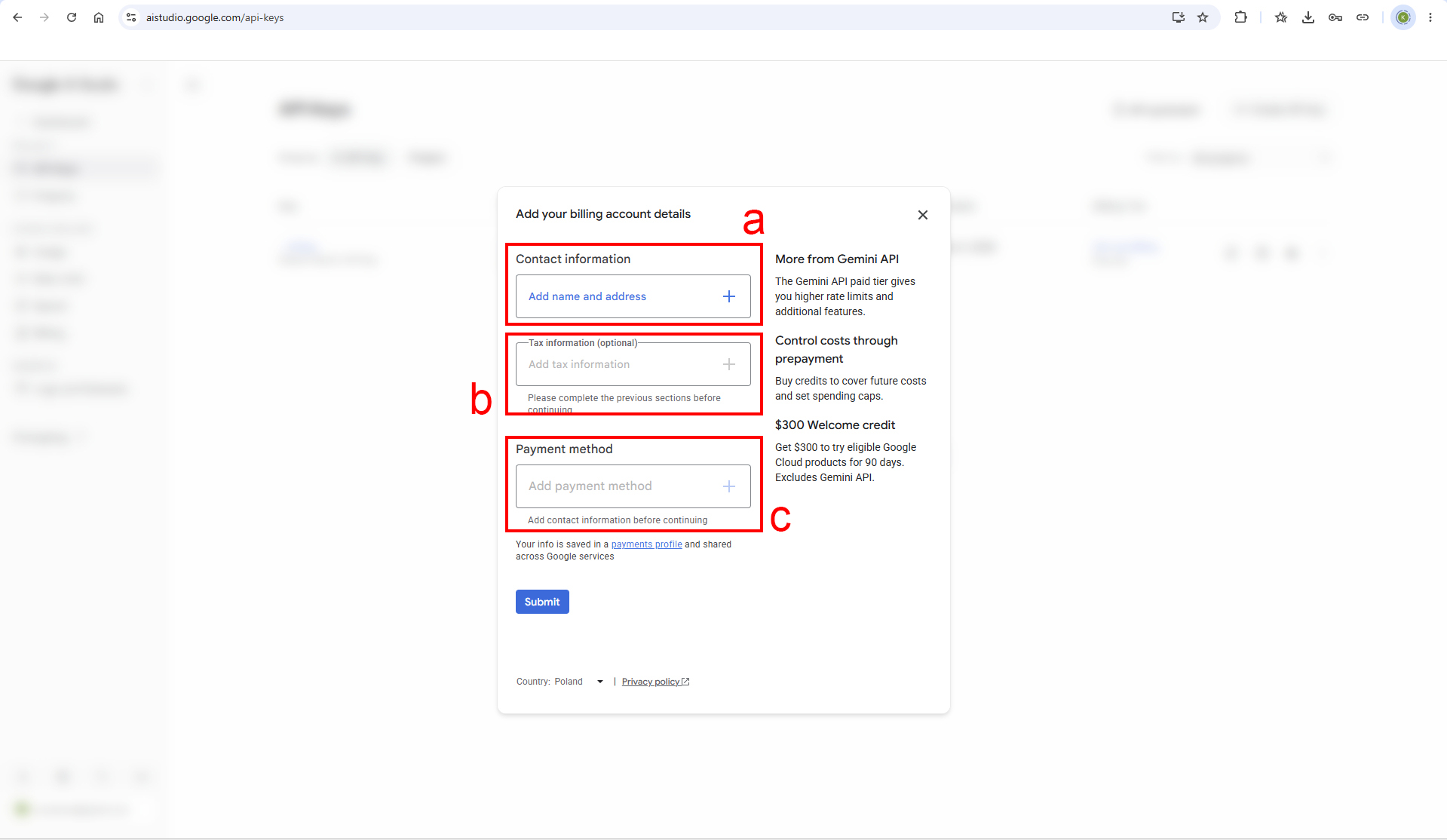
This is a standard billing form — nothing specific to Google or Gemini here.
- (a) Contact information — your name and address.
- (b) Tax information — only if you're registered as a business, optional otherwise.
- (c) Payment method — your card details.
6. Submit
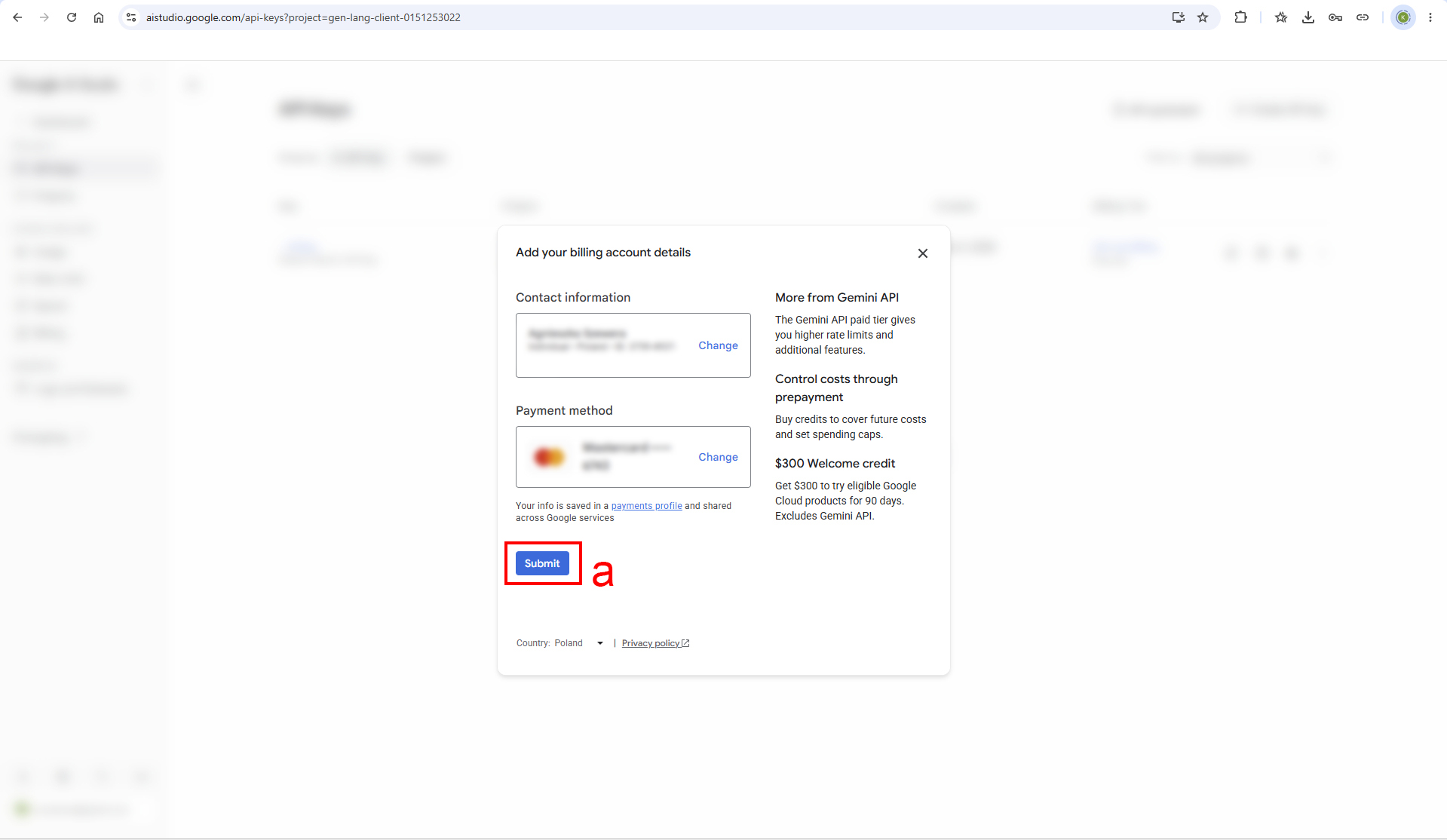
- (a) With everything filled in from the previous step, click Submit. Your card goes through a brief verification, and you're done in a moment.
7. Back to the Management Panel
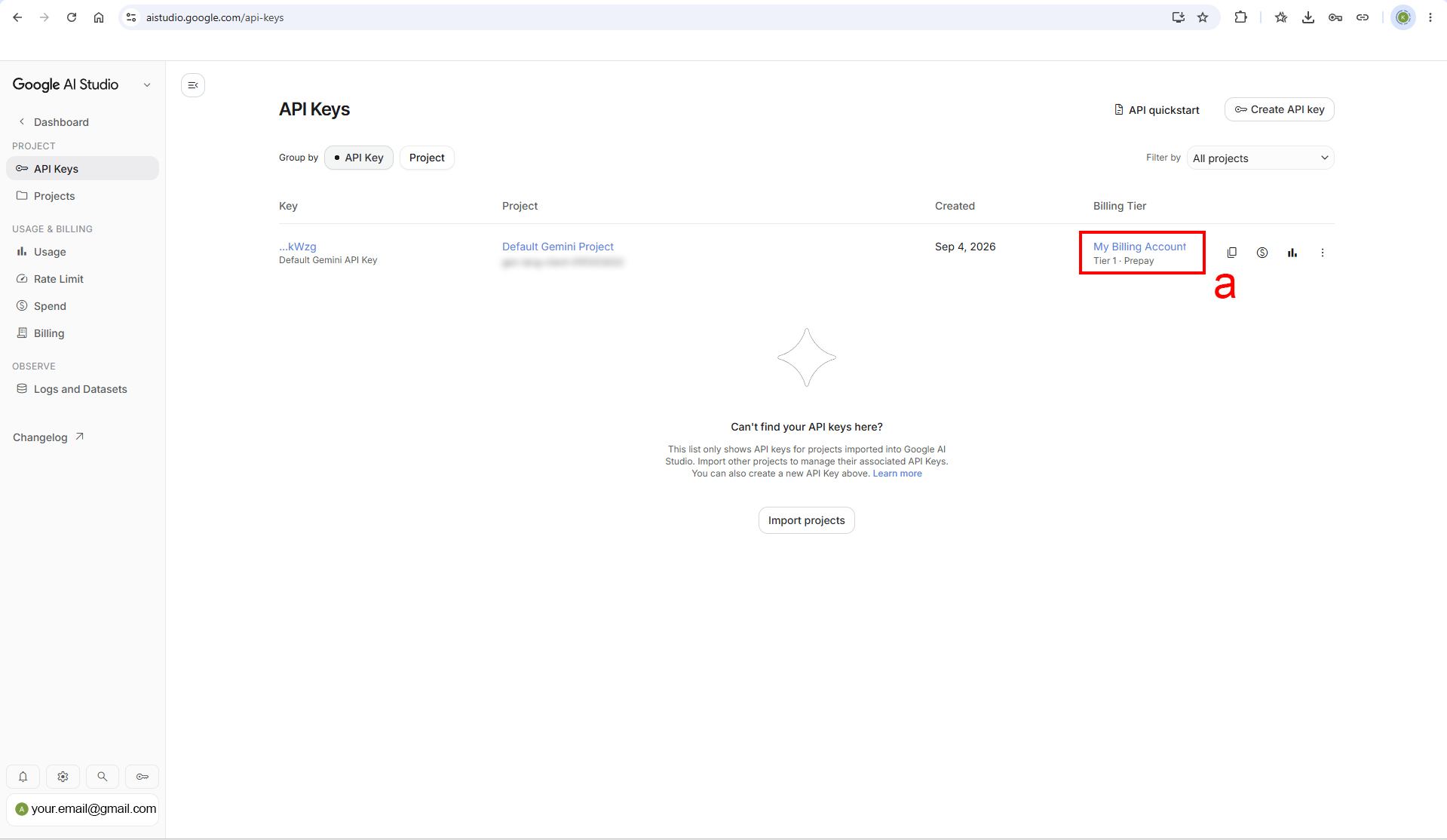
- (a) Notice your account has changed from "Free tier" to "Tier 1 · Prepay" — confirmation that billing is active.
8. Renaming Your Project (Optional)
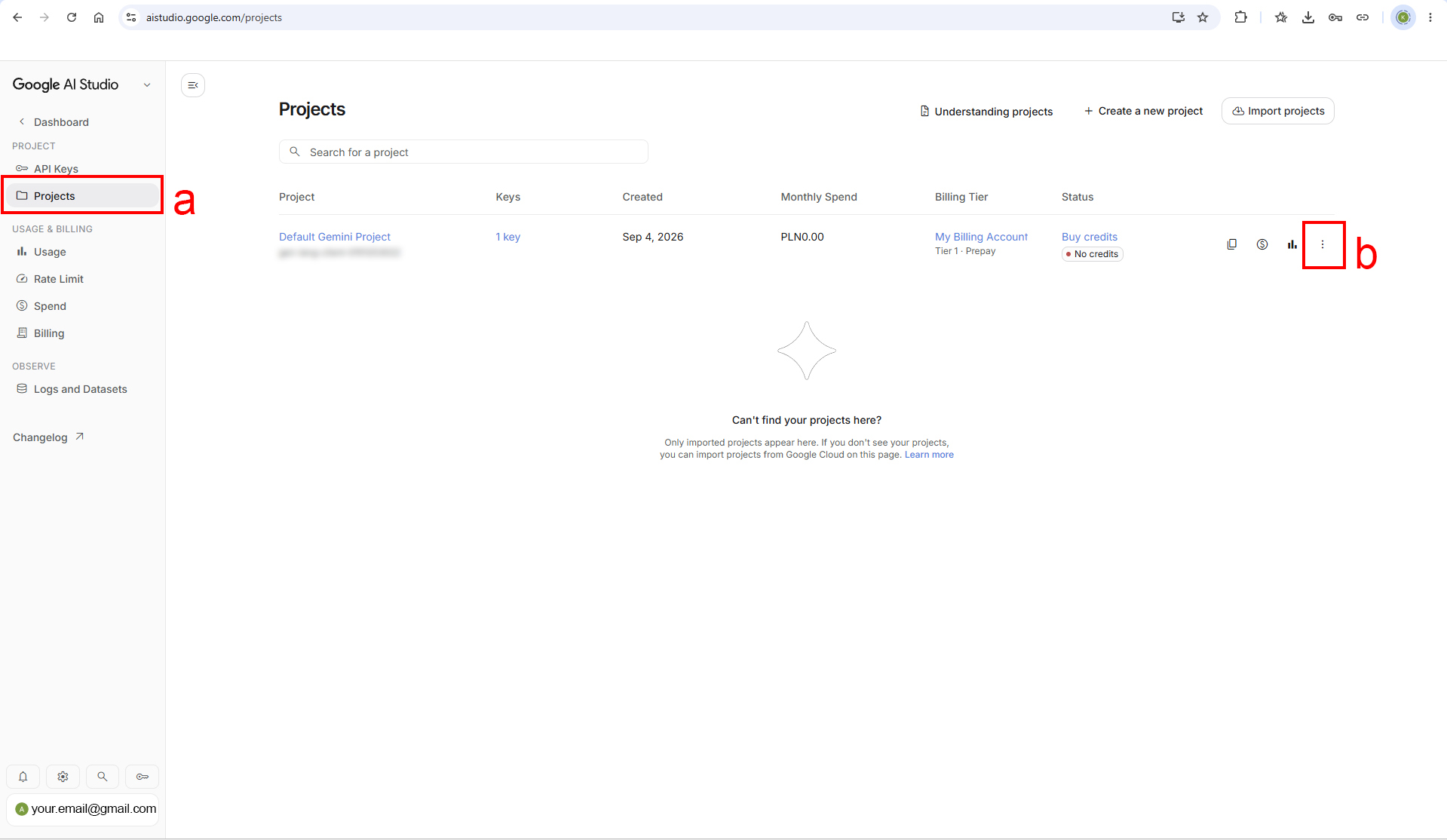
If you'd like to give your project a more recognizable name:
- (a) In the left panel, go to Projects.
- (b) Click the three dots next to your project, and rename it.
9. The Projects / API Keys Panel
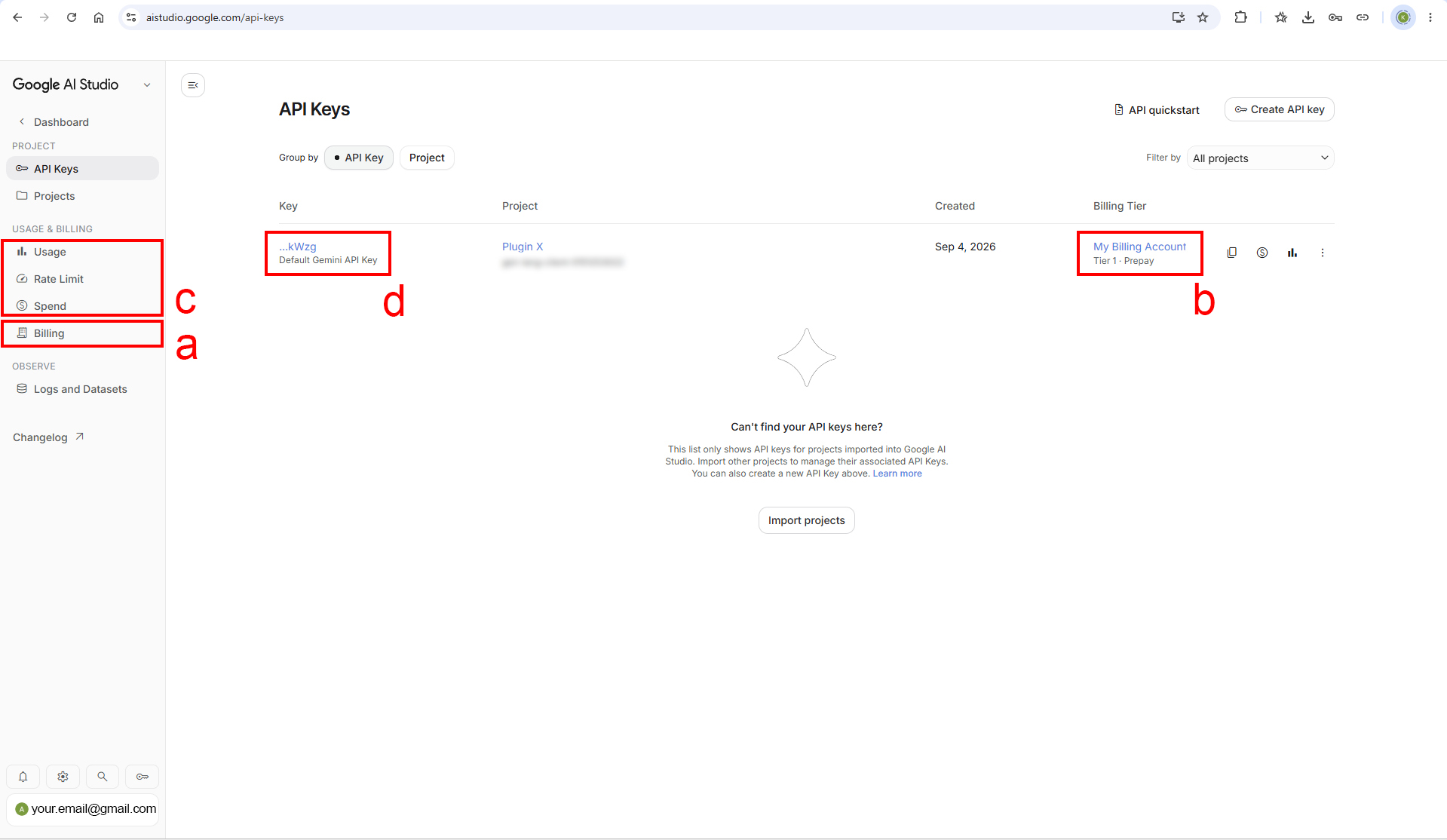
- (a) / (b) Two ways into your billing settings from here — you can change your payment method, and, most importantly, add credits (Buy Credits): top up your balance in your own currency. This is the prepay model — pay-as-you-go postpay billing is no longer supported.
- (c) The Usage / Rate Limit / Spend section — check how much you're using, how many requests you're making, and set spending limits.
- (d) The most important click on this screen — this takes you to your API key.
10. Your API Key
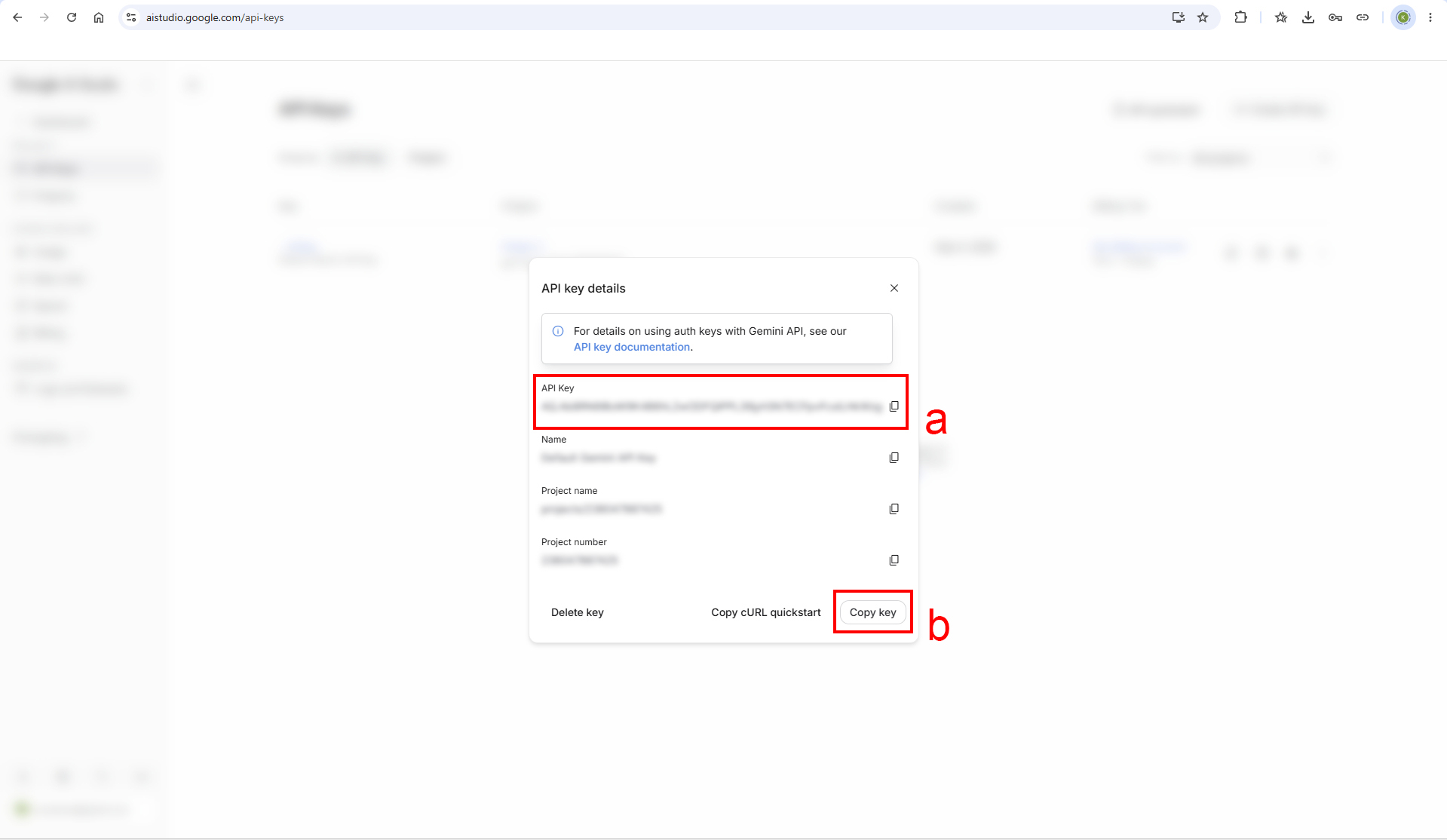
- (a) Copy your key directly from the end of the line.
- (b) Or use the Copy key button.
⚠️ Never share your API key with anyone. If someone else gets hold of it, they can run generations on your account — draining your funds. The good news: since you're on the prepay model, the damage is capped at whatever credits you've bought. It's still worth checking in on your usage occasionally, or setting a monthly spend cap under Spend (see step 9c) to limit your exposure.
Once you have your key, go back to Plugin X, open the API Key section, paste it in, and click Save Key. See the Usage Guide for the full workflow.
Usage Guide
This guide walks through every part of Plugin X's interface, why it works the way it does, and how to get the most out of it. If you haven't installed Plugin X yet, see the Installation Guide first.
Interface
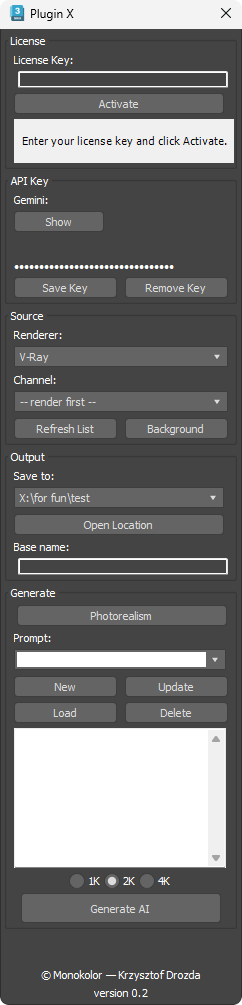
Plugin X is one floating panel, five sections top to bottom:
- License — activate your key on this machine; the status line tells you if you're good to go, offline-but-trusted, or need attention.
- API Key — your own Gemini key, saved locally. Show/hide it, save it, or remove it — we never see it.
- Source — pick the renderer, the render channel to send, and the Background toggle that decides whether Gemini invents a sky or keeps yours.
- Output — where results are saved: a folder (remembers your recent picks) and a base file name.
- Generate — the Photorealism shortcut, your saved prompts (New/Update/Load/Delete), the prompt box itself, resolution, and the Generate AI button that does the work.
Every section is explained in full detail below.
License
Before anything else, Plugin X needs your license key activated on this machine.
- License Key — paste the key from your purchase confirmation email (or from the Customer Portal link in that email), then click Activate.
- Device limit — a license can be active on 2 devices at a time (e.g. your studio machine and a laptop). If you need to move to a new device and you're already at the limit, deactivate an old one first from the Customer Portal link in your confirmation email — you can manage your own activations there without emailing us.
- Status line — tells you what's going on:
- "License valid." — you're good to go.
- "Offline — using last known valid license..." — Plugin X couldn't reach the license server right now (no internet, or a brief outage), so it's trusting the last confirmed valid check instead of blocking you. This clears up automatically once it can connect again.
- "License invalid" or similar — something needs your attention (see the Installation Guide's troubleshooting section, or email us).
Plugin X checks your license once when it opens, not on every single generation — so it won't slow anything down while you work.
API Key
Plugin X is "bring your own key" — you use your own Google Gemini account, and Google bills you directly for every generation. We never see or store your key anywhere but your own machine.
- Show / Hide — reveals or hides the key field. Handy if you're screen-sharing or recording.
- Save Key — stores the key on disk, remembered the next time you open Max.
- Remove Key — clears it from memory and disk.
Source
Renderer — currently V-Ray. Other renderers may be added in a future update.
Channel — which VFB render element gets sent to Gemini. Click Refresh List after every render to update this list.
Background — this is the one setting that most affects your result, so it's worth understanding well.
Most V-Ray render passes have a transparent background where there's no geometry — the sky/environment simply isn't part of that channel. Gemini treats a transparent area as "figure this out yourself," which is exactly what you want when using a channel that has no sky data, like Diffuse.
- Background OFF (default) — the background stays transparent, and the AI invents a plausible sky/surroundings on its own. Good for Diffuse and other passes with no environment baked in.
- Background ON — the background is sent as opaque pixels, exactly as rendered. Use this with the RGB color (beauty) channel when your scene has an actual sky/environment set up — Gemini will then match your real sky instead of guessing one.
⚠️ Turning Background ON on a channel that has no sky data (like Diffuse) will produce a black, night-time-looking result — because you're telling Gemini "this black area is real," not "please fill it in." Match the toggle to the channel you're sending.
Output
Save to — a dropdown of your recently used folders, plus "Browse..." to pick a new one. Selecting "Browse..." adds the folder to the list for next time, so you can jump between a handful of go-to locations without re-browsing every time.
Open Location — opens the currently selected folder in Explorer.
Base name — the prefix for saved files. Every generation appends a timestamp automatically, so you never overwrite a previous result — you can click Generate repeatedly without retyping a filename.
Generate
Photorealism — a checkbox that adds a baseline "make this photoreal" instruction before your own prompt. You can use it alone, or combine it with your own description for more control.
Saved Prompts — the row above the prompt box lets you save, reuse, and manage prompts you like, so you don't have to retype them:
| Button | What it does |
|---|---|
| New | Type a name in the box, write your prompt below, click New. If that name is already taken, Plugin X will ask you to pick a different one — it never silently overwrites an existing entry. |
| Update | Select an existing name from the list, edit the prompt text below, click Update. Overwrites that entry's saved text (the name stays the same). |
| Load | Select a saved name, click Load — its text replaces whatever is currently in the prompt box. |
| Delete | Select a saved name, click Delete. This removes it from the list without touching whatever is currently in your prompt box — so deleting an old favorite never costs you an edit you haven't saved yet. |
Nothing happens automatically just from browsing the list — every action requires clicking its button. That's deliberate: it means you can safely look through your saved prompts, even mid-edit, without losing unsaved work.
Prompt box — free text, scrollable, appended after Photorealism (if ticked). Prompts are saved as typed, including line breaks.
Resolution (1K / 2K / 4K) — output size for the generation. This is independent of your render's resolution — Gemini generates at whatever size you pick here, regardless of what you sent it. You can render at 1K and request a 4K result, or the reverse; in one direction you're asking the AI to add detail that wasn't in the source, in the other you're feeding it more than it needs. As a rule of thumb, send a render at least as large as the resolution you're asking for — unless you're deliberately doing a quick, low-res test pass.
Generate AI — sends the request. 3ds Max stays fully responsive while it works (generation runs in the background); the button disables itself until the result comes back, so you can't accidentally fire off two generations at once. The status line under the button shows progress and, when done, the saved file's name.
The Result
The generated image is:
- Saved to disk in your chosen Output folder, named
<base name>_<timestamp>.<jpg or png>— the extension matches whatever format Gemini actually returned, so it always opens correctly in other software (Capture One, Lightroom, Photoshop, etc.). - Loaded into the V-Ray Frame Buffer as a layer named "AI Result", sitting above your color corrections (Exposure, Filmic Tonemap, etc.) so you see it exactly as generated. You can toggle it on/off or delete it from the VFB layer stack like any other layer.
The file saved to your Output folder is always the full-resolution version. The copy shown inside the VFB is for preview — check the file on disk if you need the actual output resolution.
If you want to export the image directly from the VFB instead of using the saved file, you need to tick "Save in image" on the AI Result layer first. Exporting straight from the VFB without this produces a smaller, lower-quality result with weaker anti-aliasing than the file already saved on disk.
Being Honest About What This Tool Can and Can't Do
Plugin X sends your image to a large AI model — it is genuinely good at photorealistic stylization, but it isn't a fully controllable renderer:
- Lighting direction is a suggestion, not a guarantee. You can mention a time of day or lighting mood in your prompt, but Gemini has its own visual instincts and may not follow it — treat it as a suggestion you're making, not a setting you're locking in.
- Results aren't perfectly repeatable. The same input and prompt can produce slightly different output between runs. If you get a result you like, that's the one to keep — treat each generation as a fresh attempt rather than something you can fine-tune turn by turn.
- Every generation costs money on your Google account. There's no free tier for image generation — budget accordingly if you're iterating a lot.
We'd rather tell you this upfront than have you discover it mid-project.
This guide covers what Plugin X does. For workflow recommendations, prompting advice, and lessons learned from real use, see the separate Tips & Tricks guide.
Getting Help
Email support@monokolor.pl or DM @monokolorstudio. If something isn't working, please include your 3ds Max and V-Ray versions, what you did, and any message shown in the MAXScript Listener (press F11 to open it).
Tips & Tricks
Workflow recommendations, prompting advice, and lessons learned from real use — the practical know-how that goes beyond what the interface itself tells you.
1. Input Channel & Photorealism
- For a clean photoreal result, keep the input flat. If your input already looks like a rendered/stylized photo (e.g. sending RGB straight), the AI will match that style instead of building its own photoreal look.
- Diffuse is the best starting point for pure photorealism — it carries almost no lighting or stylistic information for the AI to "copy."
2. Building a Better Input (VFB Compositing)
V-Ray's VFB has a Composite source mode (available since a certain V-Ray version) that lets you prepare a richer input before it ever reaches the AI.
- Set Source → Composite in the VFB layer panel.
- Base layer: Diffuse, with AO on top set to Multiply. This is the recipe that works best in practice — it bakes in contact shadows and geometric depth.
- Optional: blend in RGB (beauty), masked by the Alpha channel, to bring in sky color without losing the flat photoreal base.
- Be careful with RawLight. Adding it can suggest a light direction, but results are inconsistent — treat it as something to experiment with, not a reliable technique.
3. Describing Materials
- If a material is unclear or just a flat color (not everything has a texture), describe it simply and say where it is — e.g. "the counter on the right is stainless steel, the wall behind it is orange plaster."
- If the same material keeps coming out wrong across generations, name it explicitly in the prompt and point to its location in the shot.
4. Prompting Geometry & Style
- Don't add vague descriptive words to objects that are already well-defined. If your building's massing and material breakdown are already clear and readable in the render, adding words like "modern" or "nice" tends to distort the geometry rather than improve it.
- Exception: undefined blockouts. If you're showing plain gray boxes for context buildings (not your actual project), it's fine — and useful — to describe their style.
5. Composition & Scale
- If the framing keeps shifting, add a short instruction at the start of your prompt, like "keep the exact composition."
- If there's nothing in the shot to establish scale, state it directly — e.g. "this room is 3.5 m tall."
6. Prompt Length
- Test both short and more detailed prompts. There's no single right length.
- For simple, well-defined scenes, the Photorealism checkbox alone is sometimes all you need.
7. What This Tool Is (and Isn't) For
- Think of Plugin X as a tool for exploring and guessing at a final result — useful both for finding a style and for producing a finished view.
- Fixing just one part of a result usually isn't possible. If something's off, it's often faster to run a few more generations than to try to patch the one you have.
8. Small Elements Suffer Most
- Small elements — e.g. in an aerial / bird's-eye view — are the most likely to come out distorted or unrecognizable.
- The best results come from large, clearly readable elements in the frame.
9. Patience Pays Off
- Sometimes it takes a few generations with the exact same prompt before one lands well. Give it a moment before concluding it isn't working.
10. Before You Ask for a Refund
- If you're running into a problem, please reach out first — support@monokolor.pl — before requesting a refund. Most issues are quick to sort out.
11. Editing an Already-Good Render, Not Just Full Conversion
- You don't have to use Plugin X for a full photoreal conversion every time. If your V-Ray render already looks good on its own, you can use it for a smaller, targeted edit instead — e.g. adding people into an otherwise finished shot.
- Turn Photorealism OFF for this. The checkbox always prepends a "convert to a photograph" instruction at the start of your prompt — great for full stylization, but it can fight against a prompt meant to preserve what's already there. Uncheck it and describe only the change you want (e.g. "add two people walking on the plaza, keep everything else exactly as is").
- Blend the result with your original render afterward, rather than treating the AI output as the final file. The AI won't hold the rest of the image perfectly pixel-for-pixel, so blending keeps the edit you wanted without risking the parts you were already happy with.
- This is a different workflow from the Diffuse + AO composite described earlier in this guide — that one is for building a photoreal look from scratch. This one is for surgical edits on a render you already like.